Live β€” San Francisco Muni

SF Muni
in your menu bar.

Real-time arrivals for the stops closest to you. No app switching. No browser tab. Always one click away.

πŸ“¬
Check your inbox.

The download link is on its way. Check your spam folder if it doesn't show up within a minute.

Free Β· macOS 13 Ventura or later Β· Apple Silicon & Intel

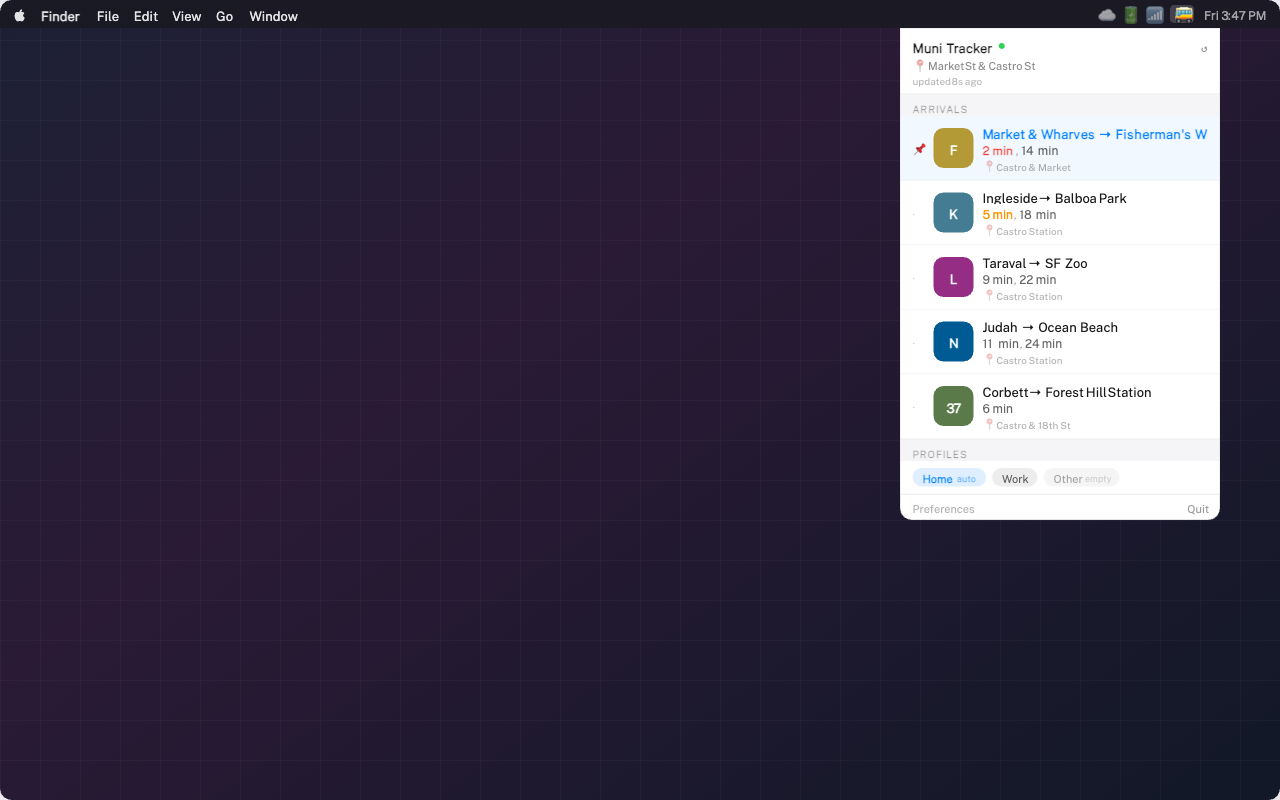
Muni Tracker showing nearby routes in the menu bar

Your commute,
always in reach.

Muni Tracker is a tiny macOS app that lives in your menu bar. Click the bus icon and you see live arrival times for Muni stops near your current location β€” no website, no app window, no fuss.

It pulls live data from 511.org every 30 seconds, falls back to cached GTFS schedules when you're underground or offline, and auto-adjusts as you move around the city. Set location profiles for Home, Work, or anywhere else so you can one-tap to any spot's arrivals instantly.

30s
Refresh rate
~0%
Dock presence
SF
Muni network
Muni Tracker in the macOS menu bar

Everything you need.
Nothing you don't.

πŸ›°
Live from 511.org

Pulls realtime predictions from the GTFS-RT feed every 30 seconds. What you see is what's actually on the street, not a schedule guess.

πŸ“
Location-aware

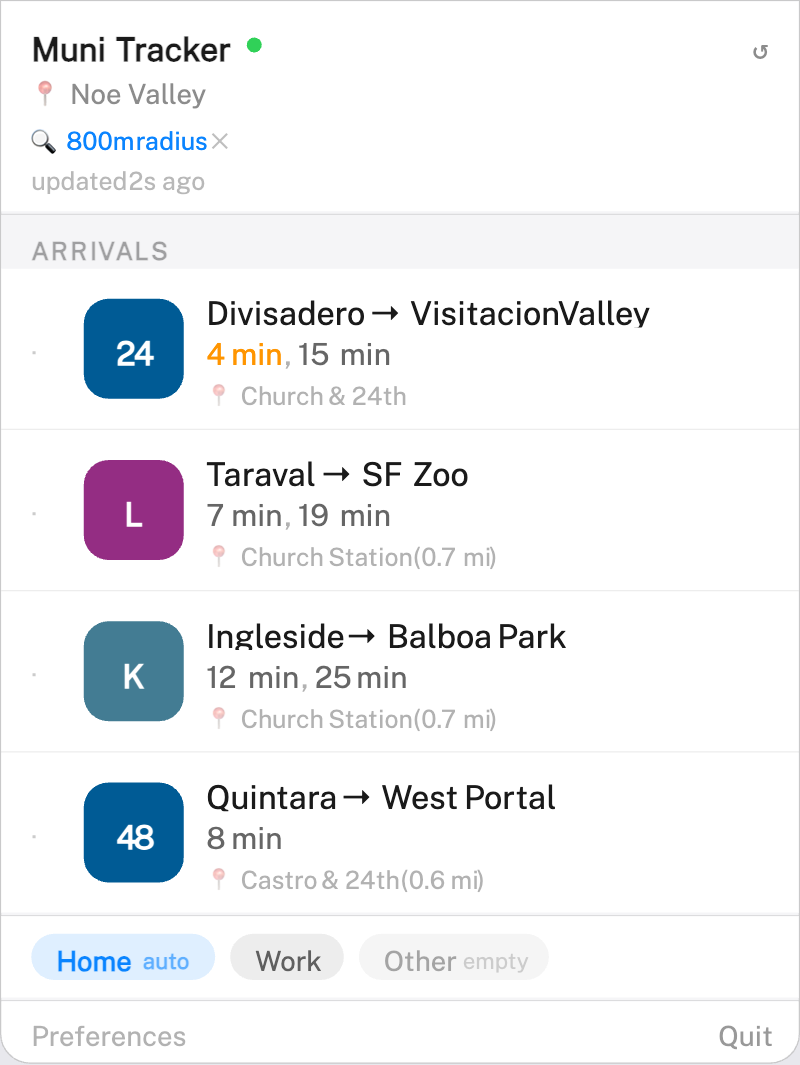
Shows only stops within walking distance of where you are right now. Radius automatically expands if nothing is nearby.

πŸ“Ά
Offline fallback

Underground or on a patchy connection? Muni Tracker falls back to its built-in GTFS schedule cache so you always have something to work with.

πŸ—‚
Location profiles

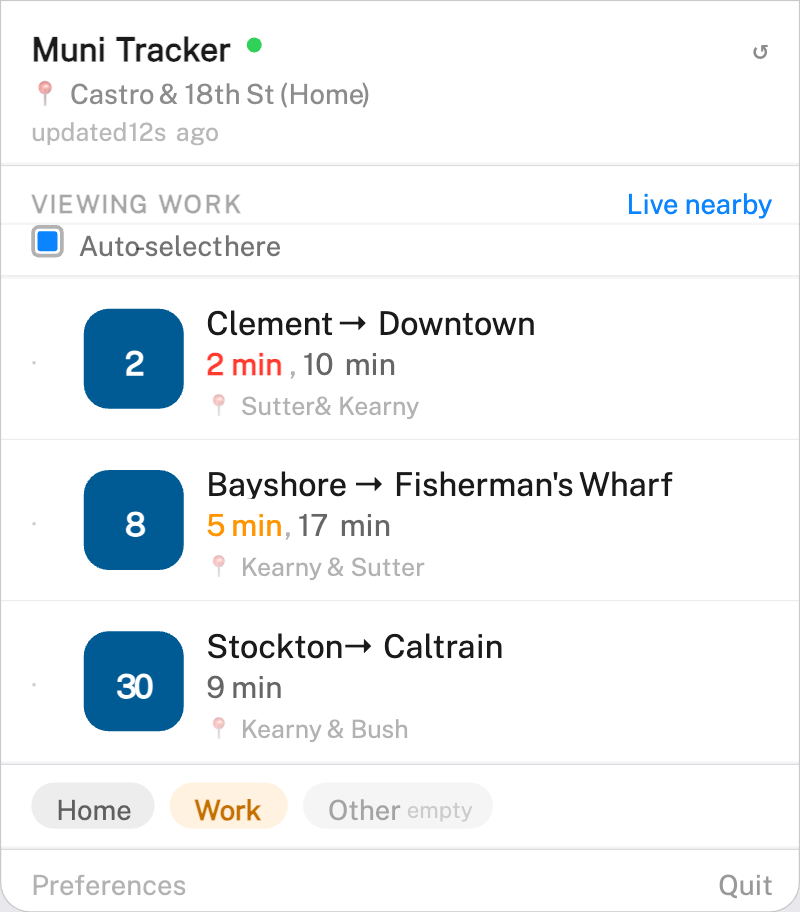
Pin Home, Work, or any custom spot. Switch between them instantly to see arrivals at a different location without moving.

πŸ”‡
Pure menu bar

No Dock icon. No app window. Muni Tracker lives exactly where it should β€” in the corner of your screen, out of the way until you need it.

⚑️
Leave-now cue

The menu bar label updates to give you a real-time nudge on when to head out the door for your next departure.

The whole thing fits
in a click.

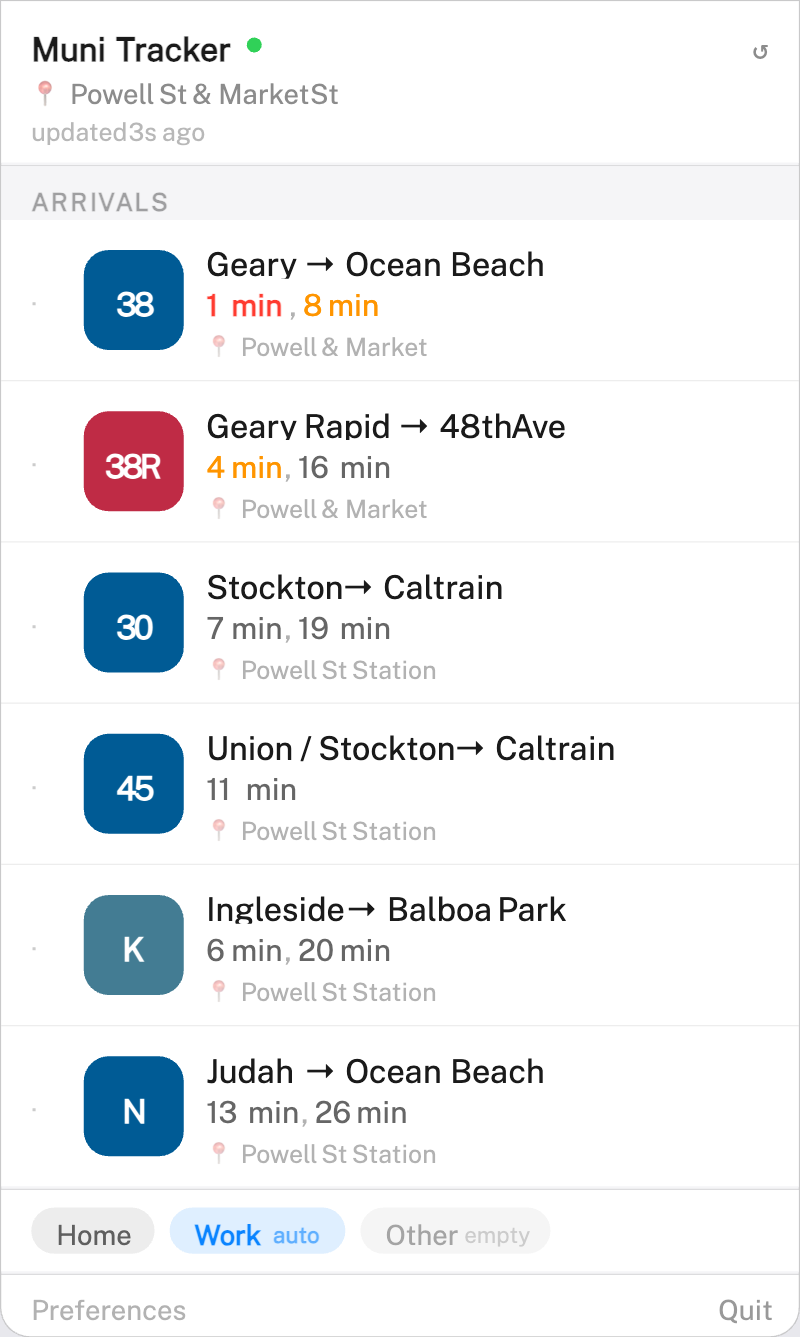
The menu bar panel shows your nearest routes, live times, and walking distance to each stop β€” all without leaving whatever you're doing.

Nearby routes panel with live arrival times
Live arrivals Β· click any route for stop detail
Location profiles panel
Location profiles β€” Home, Work, or custom
Expanded search radius view
Tap to expand the search radius when needed

Up and running
in five minutes.

1
Download and open the .dmg

After you enter your email above, you'll receive a link to the .dmg installer. Download it and double-click to mount it β€” a Finder window will open.

⚠️ macOS may say the app is from an unidentified developer. This is normal for apps not distributed through the Mac App Store. See the FAQ below for how to open it.
2
Drag to Applications

Drag Muni Tracker.app into your Applications folder. Then eject the disk image and open the app from Applications.

3
Grant Location access

On first launch, macOS will ask for Location permission. Tap Allow While Using App (or Always). Without this, the app can't find nearby stops.

4
Click the bus icon in your menu bar

A 🚌 icon will appear in your menu bar. Click it to open the arrivals panel. You'll see live times for Muni routes near your current location, sorted by how close the stop is.

5
Set up location profiles (optional)

Open the panel and navigate to Profiles to create a Home or Work location. You can pin any address so you can switch to its arrivals instantly β€” useful when you want to check the bus at work while you're still at home.

6
Launch at login (optional but recommended)

Go to System Settings β†’ General β†’ Login Items and add Muni Tracker so it starts automatically each time you log in. That way the bus icon is always there when you need it.

Questions you'll
probably have.

This is a standard macOS Gatekeeper warning for apps not distributed through the Mac App Store. To open it: right-click (or Control-click) the app in Finder, choose Open, then click Open again in the dialog that appears. You only have to do this once β€” after that, it opens normally.
A few possible causes:

1. Location permission not granted β€” check System Settings β†’ Privacy & Security β†’ Location Services β†’ Muni Tracker.

2. You're genuinely far from a stop β€” the default search radius is 400m. Tap the radius indicator at the top of the panel to expand it to 800m or 1200m.

3. Brief loading delay β€” wait a few seconds after opening for the first data fetch to complete.
Muni Tracker pulls from the same 511.org GTFS-RT data feed that NextMuni and other apps use, refreshed every 30 seconds. Small differences are normal due to different refresh timestamps. If you're seeing consistently different times, try closing and re-opening the panel to force a fresh fetch.
The app only shows routes with a stop within your current search radius. If a route you use isn't showing up, try expanding the radius by tapping the radius chip at the top of the panel (400m β†’ 800m β†’ 1200m). If it still doesn't appear, the nearest stop for that route may be further away. Creating a location profile pinned to the stop's location is the workaround β€” that gives you arrivals for exactly that spot.
No β€” this is the offline fallback working as intended. When the 511.org API isn't reachable (you're underground, on a flaky connection, or the API is momentarily down), Muni Tracker falls back to the built-in GTFS schedule cache. Schedule times are less precise than live predictions but better than nothing. The app indicates when it's in offline mode. Live data resumes automatically when the connection returns.
Your location is only used locally on your Mac to identify nearby stops. It is never uploaded, stored on a server, or shared with anyone. The only network calls Muni Tracker makes are to 511.org to fetch arrival predictions β€” the same public API any browser hitting 511.org would use.
Not right now. Muni Tracker is built specifically for the SF Muni network and uses Muni's GTFS data bundle. If you travel outside San Francisco, it won't find any nearby stops. Support for other Bay Area or transit systems isn't planned at this time.
It's designed to be lightweight. The app fetches data every 30 seconds when the panel is open, but idles quietly when the panel is closed β€” it doesn't poll in the background while you're not looking at it. The location check is similarly low-frequency. In practice, it should have negligible battery impact.
Click the 🚌 menu bar icon to open the panel, scroll to the bottom of the panel, and click Quit. Since it's a menu bar app it has no Dock icon to right-click β€” the Quit option lives inside the panel.
macOS 13 Ventura or later. It runs natively on both Apple Silicon (M1/M2/M3/M4) and Intel Macs. It will not run on macOS 12 Monterey or earlier.